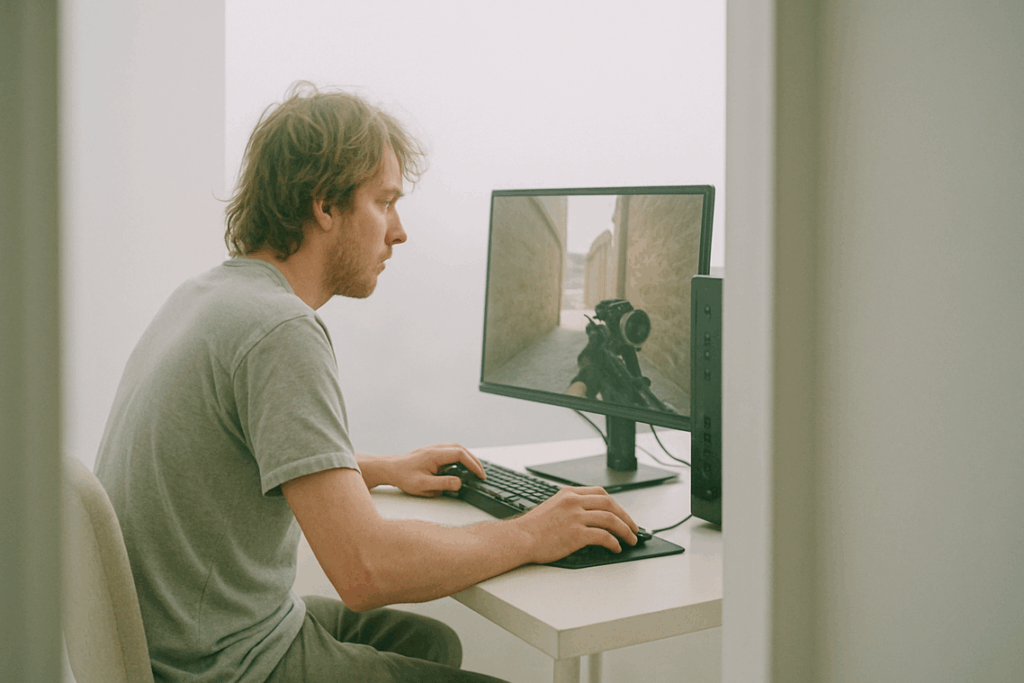
If you’re searching for real ways to increase fps without upgrading hardware, you’re probably tired of lag spikes, stuttering gameplay, and settings guides that barely make a difference. This article is built specifically to help you squeeze every possible frame out of your current setup—no new GPU, no expensive components, no guesswork.
We break down proven optimization techniques, in-game setting adjustments, system-level tweaks, and performance strategies that actually impact frame rates in today’s most demanding titles. Every recommendation is based on hands-on testing, technical performance analysis, and a deep understanding of how modern game engines and hardware interact.
Whether you’re playing competitively and need smoother responsiveness or just want a more stable experience, you’ll find clear, actionable steps here. By the end, you’ll know exactly which changes deliver measurable FPS gains—and which common “tips” aren’t worth your time.
Unlock Your Device’s Hidden Power, No Tools Required
One effective way to boost your FPS without the need for a hardware upgrade is to optimize your system settings and applications, much like the techniques discussed in our article on the Masticelator.
You know the moment. Final boss at 5% health—and your screen turns into a slideshow. Game-breaking lag always strikes when it hurts most.
Most players assume the fix is pricey new hardware. But here’s the truth: software bottlenecks—not your GPU—often choke performance (yes, even on “high-end” rigs). The real win? You can increase fps without upgrading hardware.
This checklist delivers:
- Smoother gameplay and faster response times
- More consistent frame pacing
- A competitive edge when milliseconds matter
These are the same optimization strategies competitive players rely on—tested, practical, and immediately effective.
Taming the Operating System: Your First Performance Wins
Before you blame your GPU, tame your operating system. These are the fastest ways to increase fps without upgrading hardware.
The Driver Imperative
Your graphics driver is the software translator between your game and GPU. Outdated drivers can cause stutters, crashes, and lower FPS (NVIDIA notes performance gains of up to double-digit percentages in some game-ready updates).
Clean install steps:
- Download the latest driver from NVIDIA, AMD, or Intel.
- During installation, select Custom Installation.
- Check Perform a clean installation.
- Restart your PC.
A clean install removes leftover profiles that can conflict with new updates (yes, digital clutter is real).
Conquering Startup Bloat
Startup programs are apps that launch when Windows boots, quietly eating RAM and CPU.
Disable them:
- Press Ctrl + Shift + Esc to open Task Manager.
- Click the Startup tab.
- Right-click unnecessary apps (Discord auto-launch, random updaters).
- Select Disable.
Pro tip: Leave drivers and security software enabled.
Power Plan Optimization
Windows may throttle your CPU to save energy. Switch it.
- Open Control Panel > Power Options.
- Select High Performance.
- If available, enable Ultimate Performance via
powercfg -duplicatescheme e9a42b02-d5df-448d-aa00-03f14749eb61in Command Prompt.
This prevents aggressive downclocking mid-game (because no one wants a boss fight ruined by power saving).
Background Process Cleanup
Before launching a game:
- Close browsers with 20 tabs open.
- Exit launchers you’re not using.
- Check Task Manager’s Processes tab for high CPU/RAM usage.
Think of it like clearing the stage before the main act. Even Batman preps before Gotham.
Mastering In-Game Settings: The Art of the FPS Trade-Off

Most players assume cranking everything to “Ultra” is the goal. It’s not. In fact, chasing max settings is often the fastest way to tank performance for barely noticeable gains (yes, even on expensive GPUs).
The Big Four Performance Killers
First, Shadow Quality. Shadows add depth and realism by simulating how light is blocked. The problem? High-resolution dynamic shadows are brutally demanding on your GPU. Dropping from Ultra to Medium can deliver massive frame gains with minimal visual loss in fast-paced games.
Next, Texture Quality controls surface detail. Contrary to popular belief, textures don’t always crush FPS—unless you exceed your VRAM (video memory). If your card has enough VRAM, keep textures higher and lower other settings instead.
Then there’s Anti-Aliasing (AA), which smooths jagged edges. Advanced methods like MSAA look great but can slash performance. Temporal AA (TAA) or DLSS-style solutions often give better efficiency (and fewer regrets mid-firefight).
Finally, View Distance determines how far objects render. In competitive shooters, lowering it can significantly increase fps without upgrading hardware—especially on large maps.
Resolution vs. Render Scaling
Lowering native resolution reduces the total pixel count your GPU processes—but it also makes UI and text blurry. Instead, use render scaling, which lowers internal rendering resolution while keeping the interface sharp. It’s a smarter compromise and often the better option for maintaining clarity.
For a deeper breakdown, check out the best graphics settings for performance and visual balance.
Finding Your Sweet Spot
Start with everything on Low. Measure FPS using an in-game benchmark or overlay. Then increase one setting at a time—shadows first, textures second—and track the impact. Stop when performance dips below your target (Pro tip: aim for 1% lows, not just average FPS).
Turn It Off
Disable Motion Blur, Chromatic Aberration, and high levels of Ambient Occlusion. They often add cinematic flair—but in motion? You’ll barely notice (and your GPU definitely will).
Advanced Tactics: Squeezing Out Every Last Frame
If you’ve already lowered settings and updated drivers, it’s time for the deep cuts. These tweaks won’t magically double performance—but together, they can produce measurable gains.
GPU Control Panel Deep Dive
Inside NVIDIA Control Panel, set Power Management Mode to Prefer maximum performance. This prevents the GPU from downclocking mid-game (which can cause inconsistent frame pacing). AMD users can enable Radeon Anti-Lag and adjust texture filtering quality to performance.
According to NVIDIA’s own developer documentation, power state adjustments can reduce latency spikes under load by maintaining higher boost clocks (NVIDIA Dev Blog, 2023). In competitive titles, that stability matters.
Pro tip: Only force maximum performance for specific games, not globally—otherwise your GPU runs hotter at idle.
Disabling Overlays
Overlays from Discord, Steam, and GeForce Experience hook into your game’s rendering pipeline. That hook costs resources.
- Disable Discord overlay in User Settings → Game Overlay
- Turn off Steam Overlay per game in Properties
- Disable GeForce Experience In-Game Overlay
Microsoft notes background apps can impact frame timing and responsiveness (Microsoft Support, 2024). Even small overhead can mean the difference between 144 FPS and 130 FPS. In esports, that’s noticeable.
Windows Gaming Optimizations
Enable Game Mode and Hardware-Accelerated GPU Scheduling (Windows Settings → System → Display → Graphics). Hardware scheduling reduces CPU overhead by letting the GPU manage its own memory queue. The result? LOWER LATENCY under GPU-bound workloads.
System File and Disk Health
Run Disk Cleanup regularly. Defragment HDDs. Ensure SSD TRIM is active (it usually is by default). Fragmented drives increase load times and asset streaming stutter.
These optimizations won’t transform a budget rig into a supercomputer—but they can absolutely increase fps without upgrading hardware. Sometimes, the final 10% is hidden in plain sight.
Your gaming rig doesn’t have to feel like a slideshow. Now you have a practical toolkit to increase fps without upgrading hardware, and honestly, that’s empowering. We’ve all felt the sting of lag at the worst possible moment—right before a final push or clutch play. However, smart, consistent optimization flips that script. In my view, software tweaks beat pricey upgrades more often than people admit. Start here:
- Disable unnecessary startup programs
- Update graphics drivers
- Lower in-game background effects
So, pick one step—right now. You’ll notice faster boot times and smoother matches, which proves small, focused changes truly compound immediately.
Level Up Your Performance Today
You came here looking for real ways to smooth out your gameplay and boost performance without draining your wallet. Now you understand the mechanics, the optimization tweaks, and the small changes that make a massive difference in competitive play.
Lag spikes, frame drops, and inconsistent performance aren’t just annoying — they cost you wins. When your system doesn’t respond the way you need it to, your reaction time, precision, and overall experience suffer. That frustration is exactly why learning how to increase fps without upgrading hardware is such a game-changer.
The players who stay ahead aren’t always the ones with the most expensive rigs — they’re the ones who optimize smarter.
Now it’s your move. Apply these strategies, fine-tune your settings, and put these optimization techniques into action today. If you’re serious about smoother gameplay and competitive performance, dive deeper into advanced tuning guides and proven player-tested methods trusted by thousands of performance-focused gamers.
Stop letting poor optimization hold you back. Take control of your setup, maximize your frames, and start playing at the level you know you’re capable of.